
11
comments

I've written about several different methods which Blogger users can choose to display related posts - all of which perform their function well enough. But after seeing several of my favourite sites displaying links to related items with thumbnails using LinkWithin's free service, I was intrigued to discover how well this may be adapted for use with Blogger.
About LinkWithin
LinkWithin is a free service offered by a small team based in New York. This free service enables us to display related posts with thumbnails below our blog posts (the thumbnail is taken from an image within the post it links to).We retrieve and index all stories from your blog archive, not just recent stories, making them accessible to new or casual readers of your blog who would not otherwise encounter them.The posts chosen to appear as related posts are based on several factors including:
- Relevance
- Popularity
- Recency
We plan to introduce revenue-sharing features in the future, but they will be optional.At present, there is little documentation for us to be certain of these factors, though after testing LinkWithin in a few different sites, I'm pretty impressed by the choices generated for each post!
Here is an example of how LinkWithin functions for WeLoveBlogger.com:

Why LinkWithin may be a more ideal solution than other related posts solutions for Blogger
The "related posts" solutions for Blogger which I've used until now have all relied on label feeds. That is, the recent posts generated by such scripts collect recent posts from the same label (category). This often means that posts deeper within our archives are generally ignored, even when they may be far more relevant than the more recent posts displayed.LinkWithin parses all posts from our blogs, and chooses the posts to be displayed using more complex and relevant factors. This ensures far greater relevancy which is better for our readers and also ensures that older posts are included in the display.
How to add LinkWithin Related Posts to Your Blogger Blog
If you're using a standard, uncustomized Blogger template, the method for installing LinkWithin is fairly straightforward. Simply visit the LinkWithin website, fill in the form on the right-hand side (choosing Blogger as your platform) and follow the instructions provided.This will install the related posts in your template as a gadget beneath the main posts section, though you'll find the "You may like these related stories" section will be displayed beneath each of your blog posts (before the post-footer section). It will also display on each and every page of your blog, including the main, archive and search pages.
Custom Installation of LinkWithin for Blogger templates
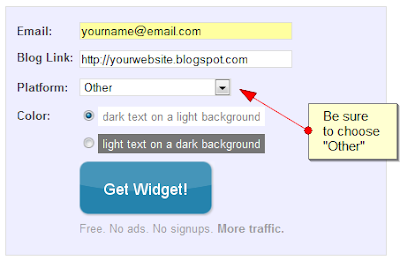
If you prefer to display your related posts only on item pages or have a customized, non-standard Blogger template, here is how you can install LinkWithin:- Visit the LinkWithin website and fill in the form on the right-hand side. For the "platform" be sure to choose "Other":
- On the next page, you will find a script like this is generated. From this code, you need to write down your unique "site ID" for later use (or copy this to your favourite text editor):

- Once you have a note of your Site ID, go to Layout>Edit HTML in your Blogger dashboard and ensure you have checked the "Expand widget templates" box.
- Using your browser's search function, locate this tag (or similar) in your Blogger template code: <div class='post-footer'>
Depending on the template you are using, this tag may vary slightly though you should usually be able to locate 'post-footer' in your template code. - Immediately before this line, paste the following section of code, replacing "YOUR_SITE_ID" with the ID number you have noted down for your site:
<b:if cond='data:blog.pageType == "item"'>
<script>
var linkwithin_site_id = YOUR_SITE_ID;
(function () {
var elem = document.createElement('script');
elem.type = 'text/javascript';
elem.src = 'http://www.linkwithin.com/widget.js?rand=' + Math.random();
document.getElementsByTagName('head')[0].appendChild(elem);
})();
</script>
<a href="http://www.linkwithin.com/"><img src="http://www.linkwithin.com/pixel.png" alt="Blog Widget by LinkWithin" style="border: 0" /></a>
</b:if> - Preview the changes you have made before saving your template. The LinkWithin gadget should not display in the preview; furthermore, if there are any errors in the installation you will be able to see before attempting to save.
- If all is well, save your template and visit an item page in your blog: you should be able to see related posts showing up beneath your blog posts.


Support for LinkWithin's related posts
While I can help with installation for LinkWithin in Blogger templates, I'm not able to help with specific problems with the script.Luckily, the LinkWithin team offer a good support service via email:
If your blog uses a non-standard custom template/theme, we will need to add support for your blog manually, and we can do this only if the widget remains installed on your blog. Please email us at support AT linkwithin DOT com, and we will fix the problem, usually within 1-2 days. Thank you for your patience!At the moment, it appears we can only display three related posts. Hopefully LinkWithin will offer the option to display more (or less) items in a future version of the script.
Why I'm not using LinkWithin yet...
LinkWithin is a very useful solution for Blogger users wishing to display links to related posts in their blog. I recommend this service and will be using this in a future release of Blogger Buster.My current template is highly complex and has served me well for many months. However, there are several new (and upcoming) customizations and new features for Blogger which may not work so well in this design. I'll explain more about this in a future post when the site changes are closer to completion.
Are you using LinkWithin? What do you think about this service?
If you're already using LinkWithin (or plan to use this soon), please let us know your opinions of this free service, and how well you think this adapts to displaying posts in your blog by leaving your comments below.


